Ajukan Stiker LINE melalui Aplikasi Sticker Maker
Panduan lengkap iPhone dengan tangkapan layar
Unduh ZIP dari Stampo
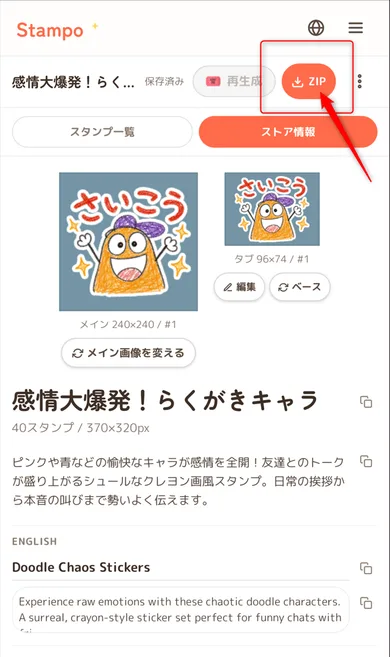
Ketuk tombol ZIP di kanan atas editor
Once you finish editing your stickers, tap the "ZIP" button in the top-right corner.
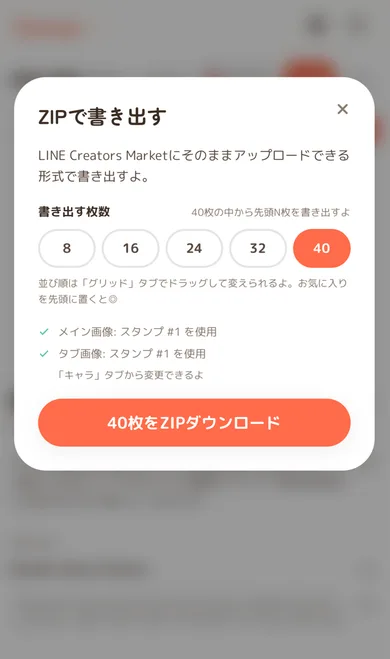
Pilih jumlah stiker dan ketuk “Unduh ZIP”
Select 8 / 16 / 24 / 32 / 40 stickers, then tap "Download 40 stickers as ZIP".
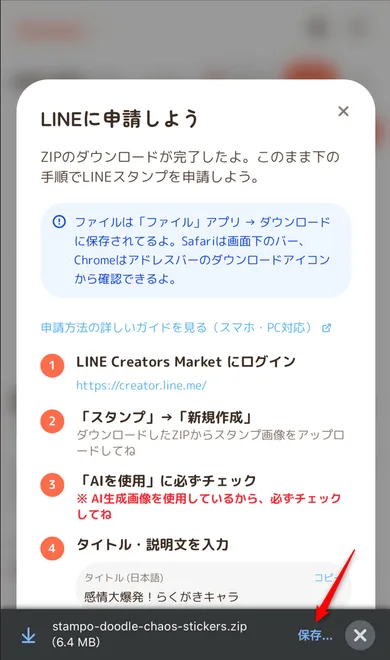
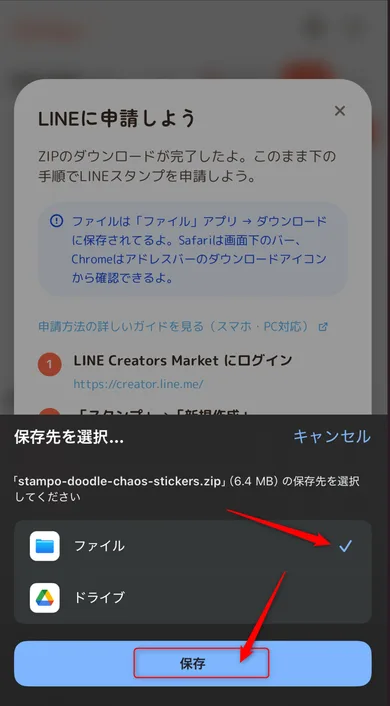
Unduhan selesai → simpan ke File
A submission guide appears once the download finishes. When the save dialog pops up at the bottom, choose "Files" and tap "Save".
Ekstrak ZIP di Aplikasi File
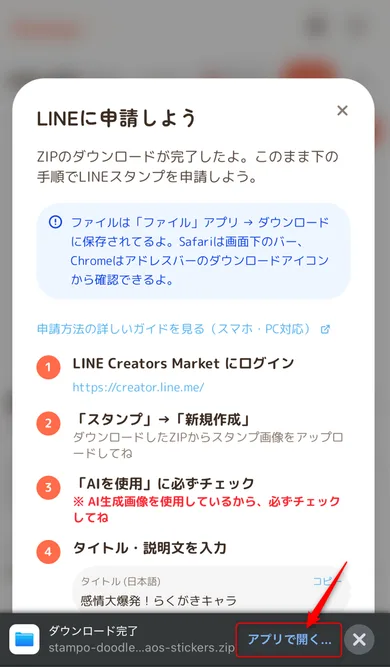
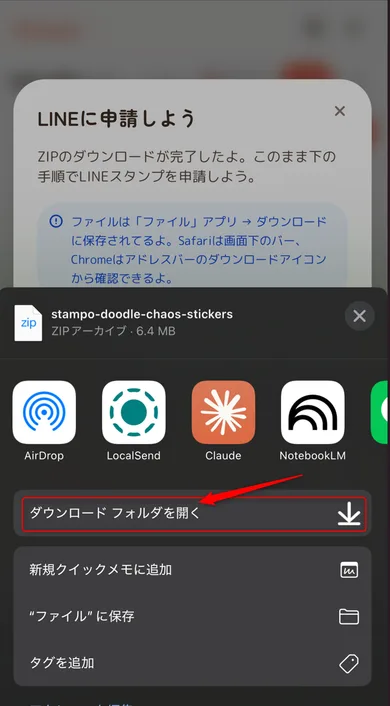
Ketuk “Buka di Aplikasi” atau buka folder Unduhan
When the "Download complete" banner appears at the bottom, tap "Open in App". Alternatively, choose "Open Downloads Folder" from the share sheet.
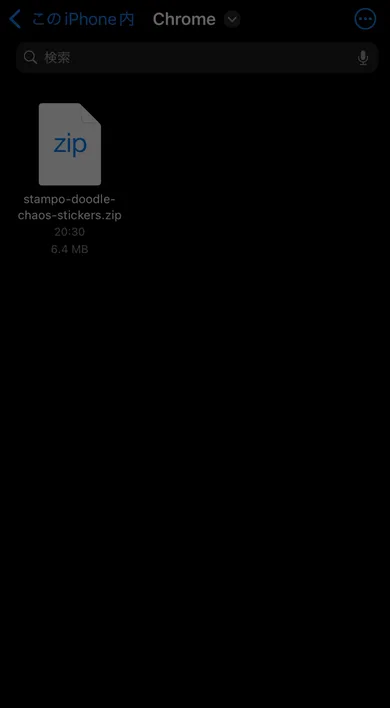
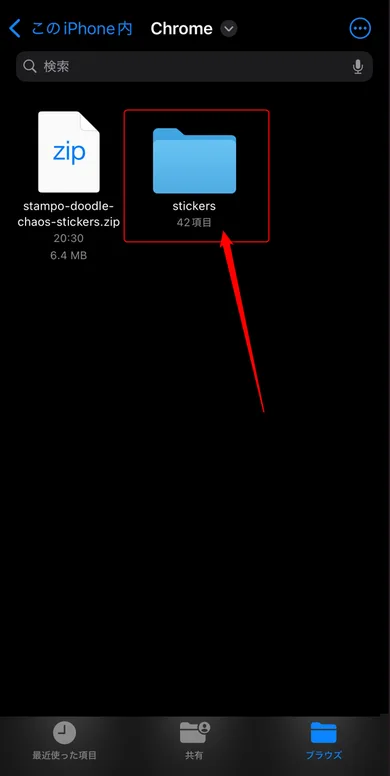
Ketuk ZIP di File untuk mengekstraknya
Tap the ZIP file to select it. After extraction, a "stickers" folder will appear next to it.
Pilih Semua File dan Kirim ke Sticker Maker
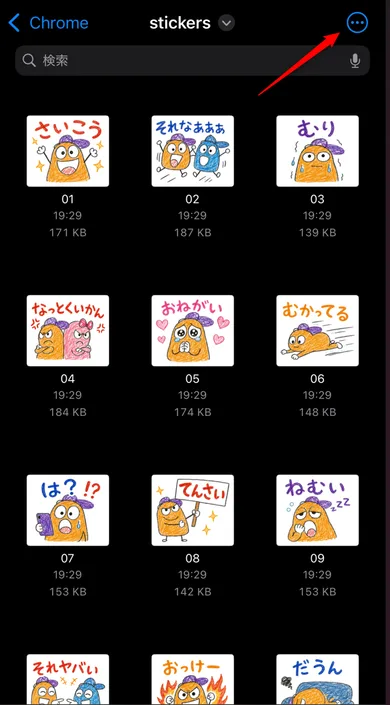
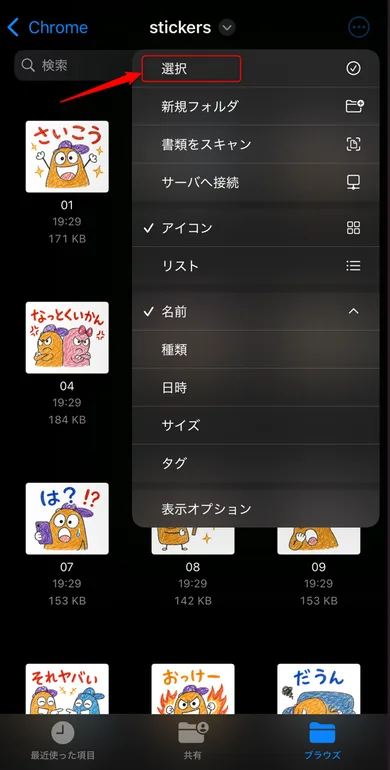
Buka folder stickers lalu ketuk “…” → “Pilih”
Tap the stickers folder to open it. Tap the "…" button in the top-right, then choose "Select" from the menu.
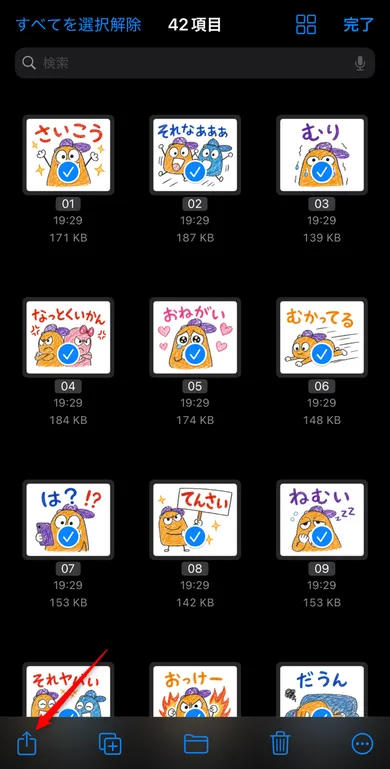
Ketuk “Pilih Semua” → pilih semua → tombol Bagikan
In selection mode, tap "Select All" in the top-right to select every file. Then tap the Share button (square with arrow) at the bottom.
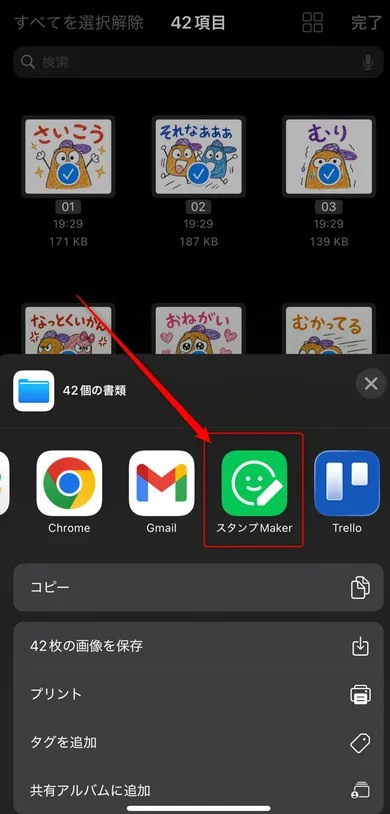
Pilih “Sticker Maker” dari menu berbagi
When the share sheet opens, tap "Stamp Maker" in the app list. If it doesn't appear, scroll sideways to find it.
Ajukan di Aplikasi Sticker Maker
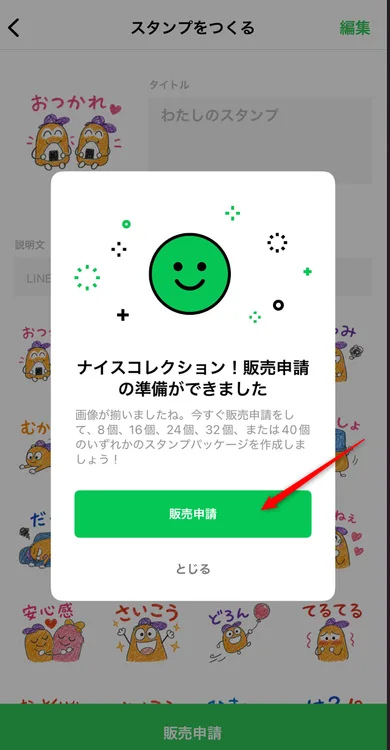
“Siap dijual!” → ketuk “Ajukan untuk Dijual”
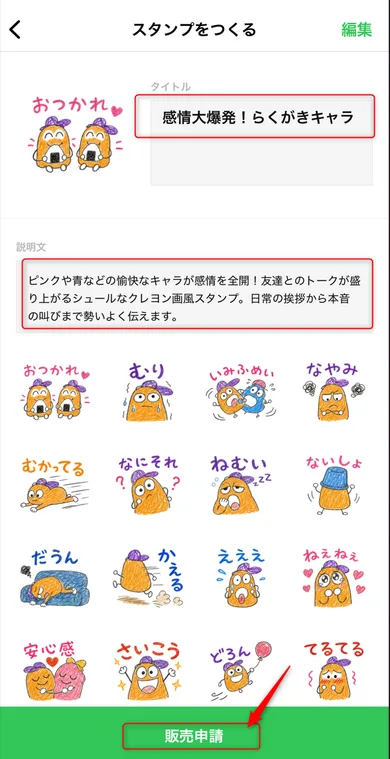
The app opens and shows "Nice collection! Ready to submit for sale." Enter a title and description (you can copy them from the Stampo editor), then tap "Submit for Sale".
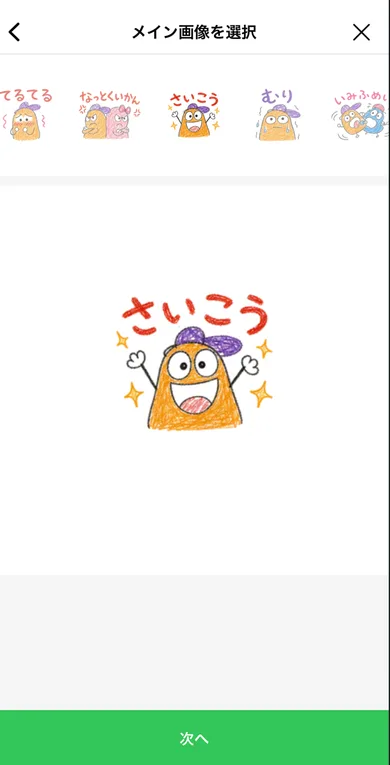
Pilih gambar utama dan ketuk “Berikutnya”
Pick the main image that will be displayed in the shop. Choose the cutest or most eye-catching sticker, then tap "Next".
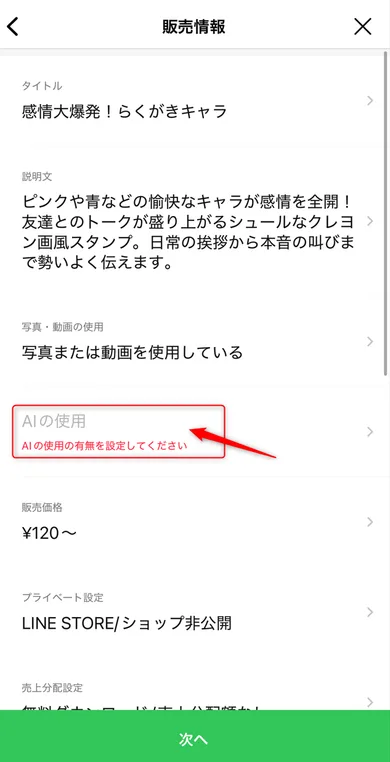
Isi Informasi Penjualan dan pastikan “Menggunakan AI” diatur
Follow the prompts to choose a price (120 coins and up). Note that "Show in LINE STORE / Shop" is hidden by default — turn it on if you want your stickers listed in the shop.You must set "Uses AI" to "Yes".Submitting AI-generated images without this flag may result in rejection during review.
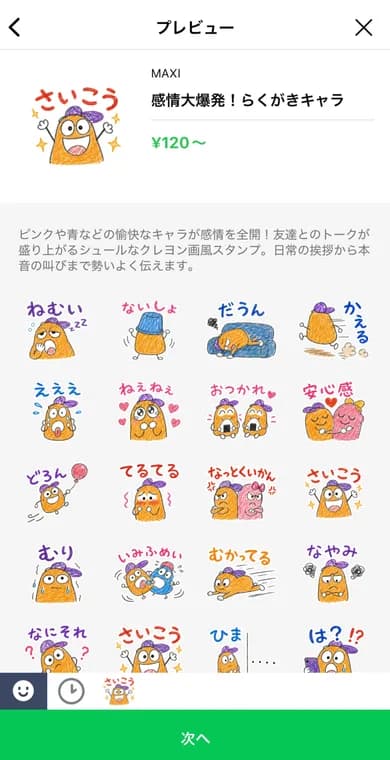
Periksa pratinjau dan ketuk “Berikutnya”
Do a final check of how your stickers are arranged. If everything looks good, tap "Next".
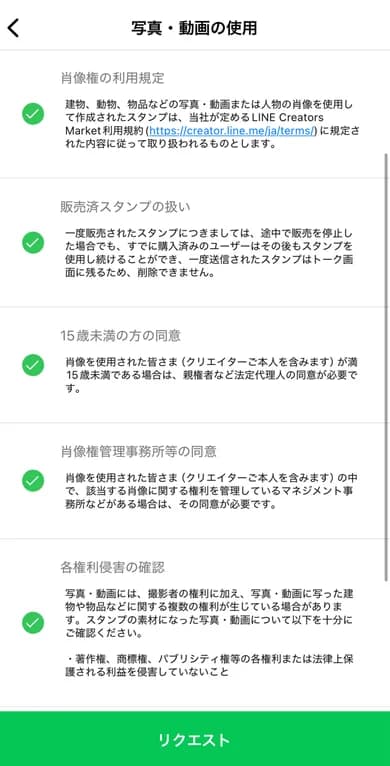
Baca ketentuan penggunaan foto/video → ketuk “Ajukan”
Terms regarding portrait rights and copyright will appear. Read them and tap the "Request" button.
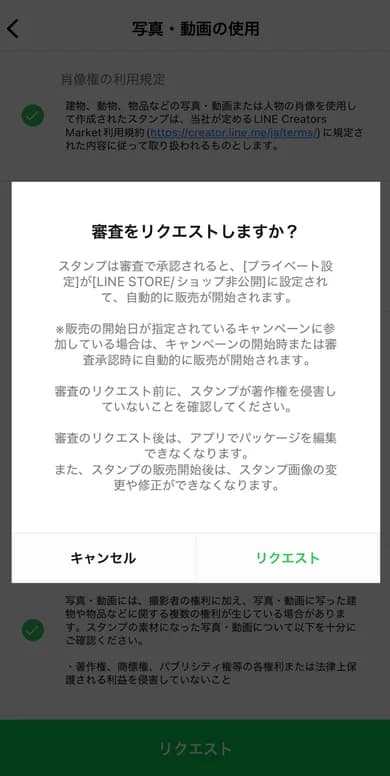
Pengajuan terkirim! Tunggu hasil peninjauan
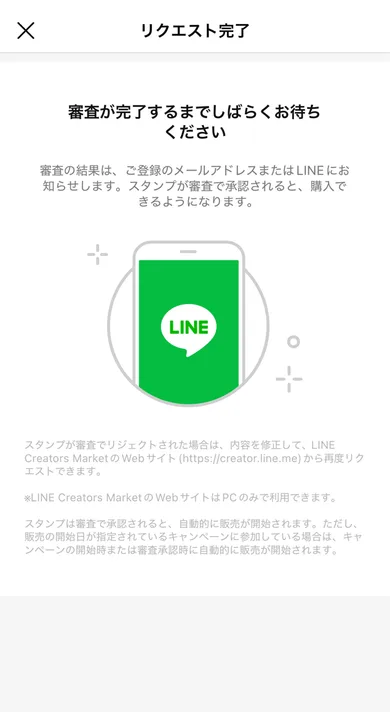
Once the "Request Complete" screen appears, your submission is done. You'll be notified of the review result by email or LINE. It typically takes a few days to about a week.
Setelah Peninjauan
- Jika disetujui, stiker dijual otomatis (tersembunyi di LINE STORE jika diatur pribadi)
- Jika ditolak, Anda menerima alasannya. Perbaiki dan ajukan ulang melalui LINE Creators Market (web)
- Setelah dijual, siapa pun dapat membeli stiker Anda di Toko Stiker LINE